 To send a Batch Text (Stays):
To Access the Batch Texting (Stays) screen area:
1. Via the Manager's Commands Screen:
Open the Manager's Commands Screen:
From the Full Menu => Other section, click Manager's Screen.
Click the icon on the left for the Full Menu.
 OR
OR 
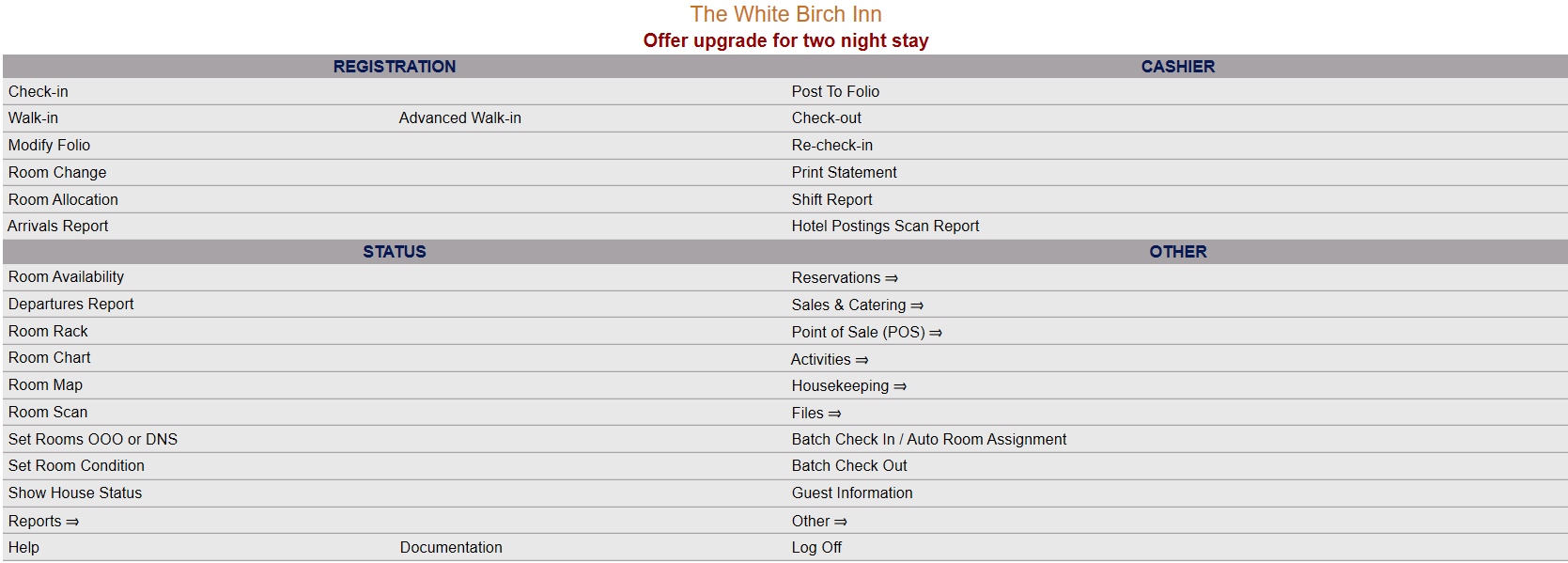
This will display the Full menu in a tabular form, with four sections, Registration, Status, Cashier and Other.
 OR
OR 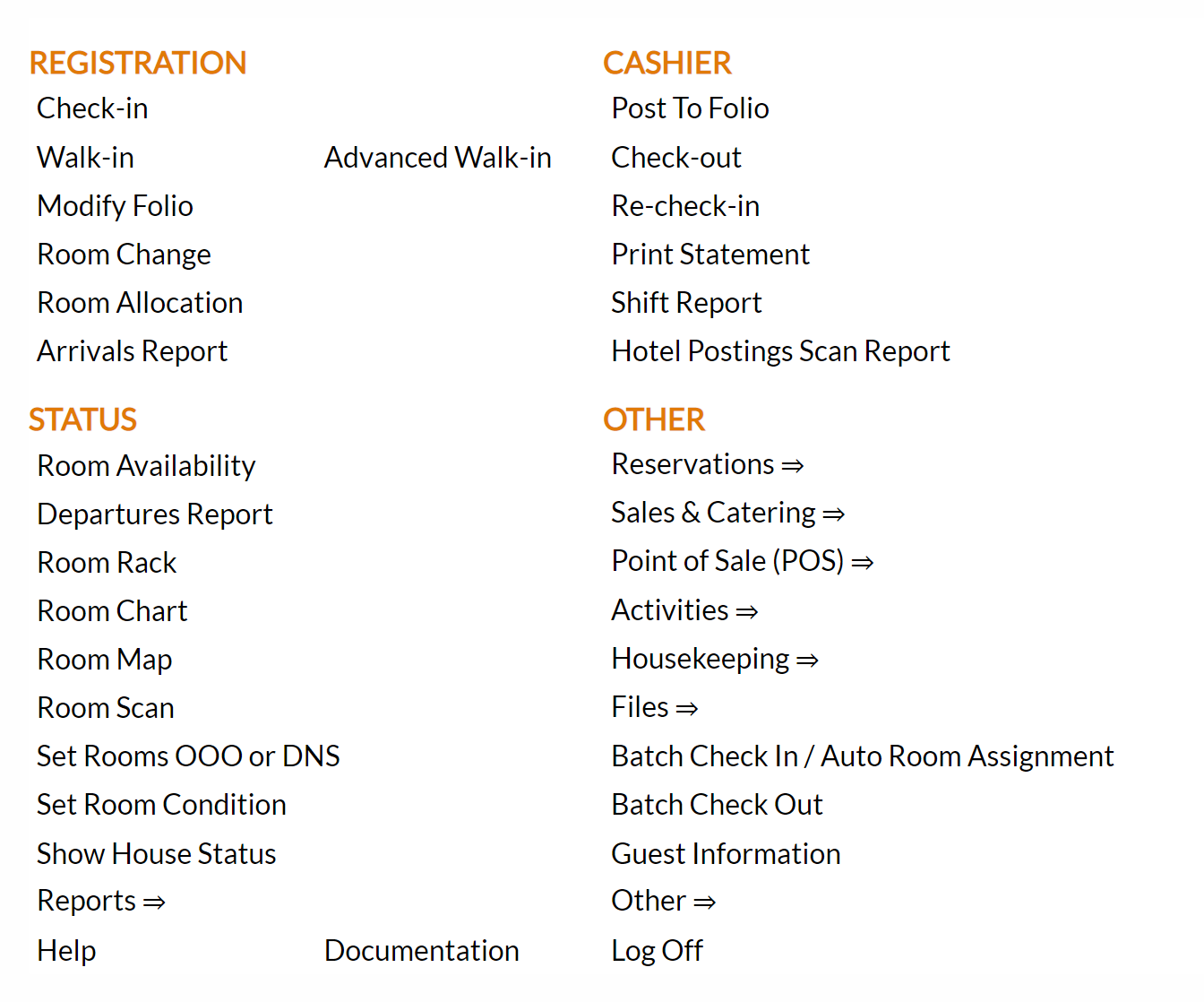
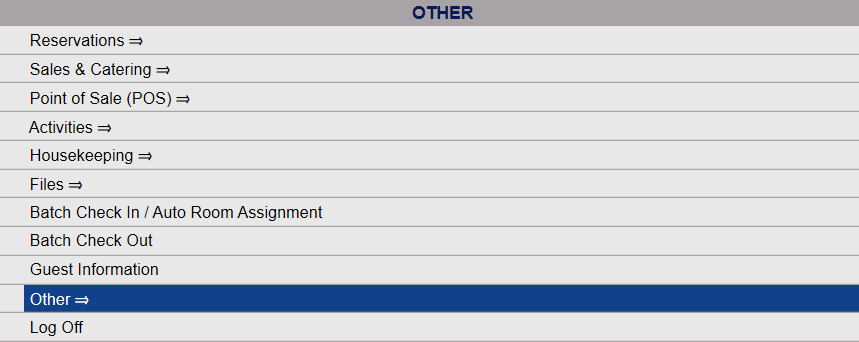
Select Other => from the Other section.
 OR
OR 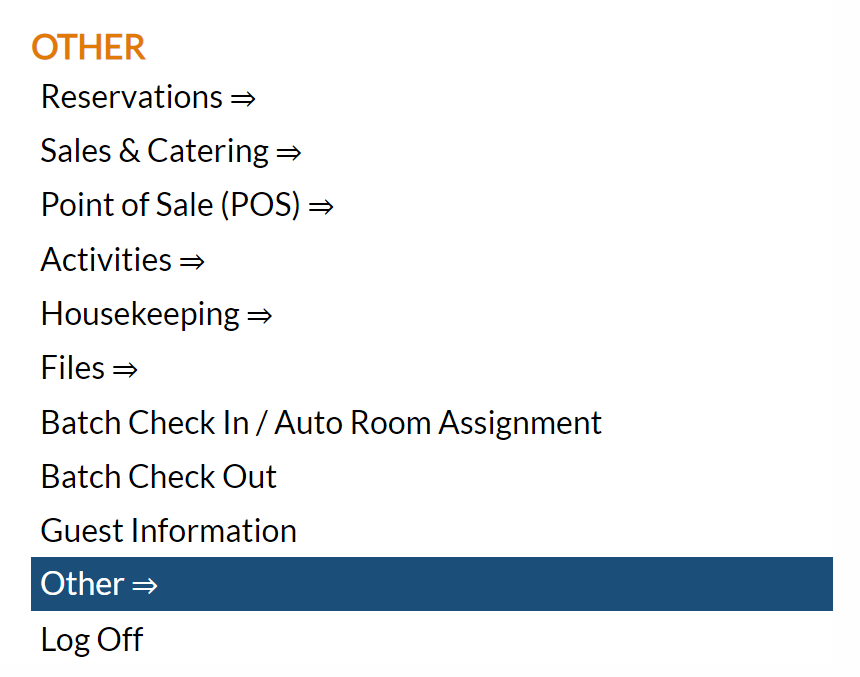
This will take you to the Other Front Desk Tasks menu, which has four sections, Other List 1, Other List 2, Documents and Web.
 OR
OR 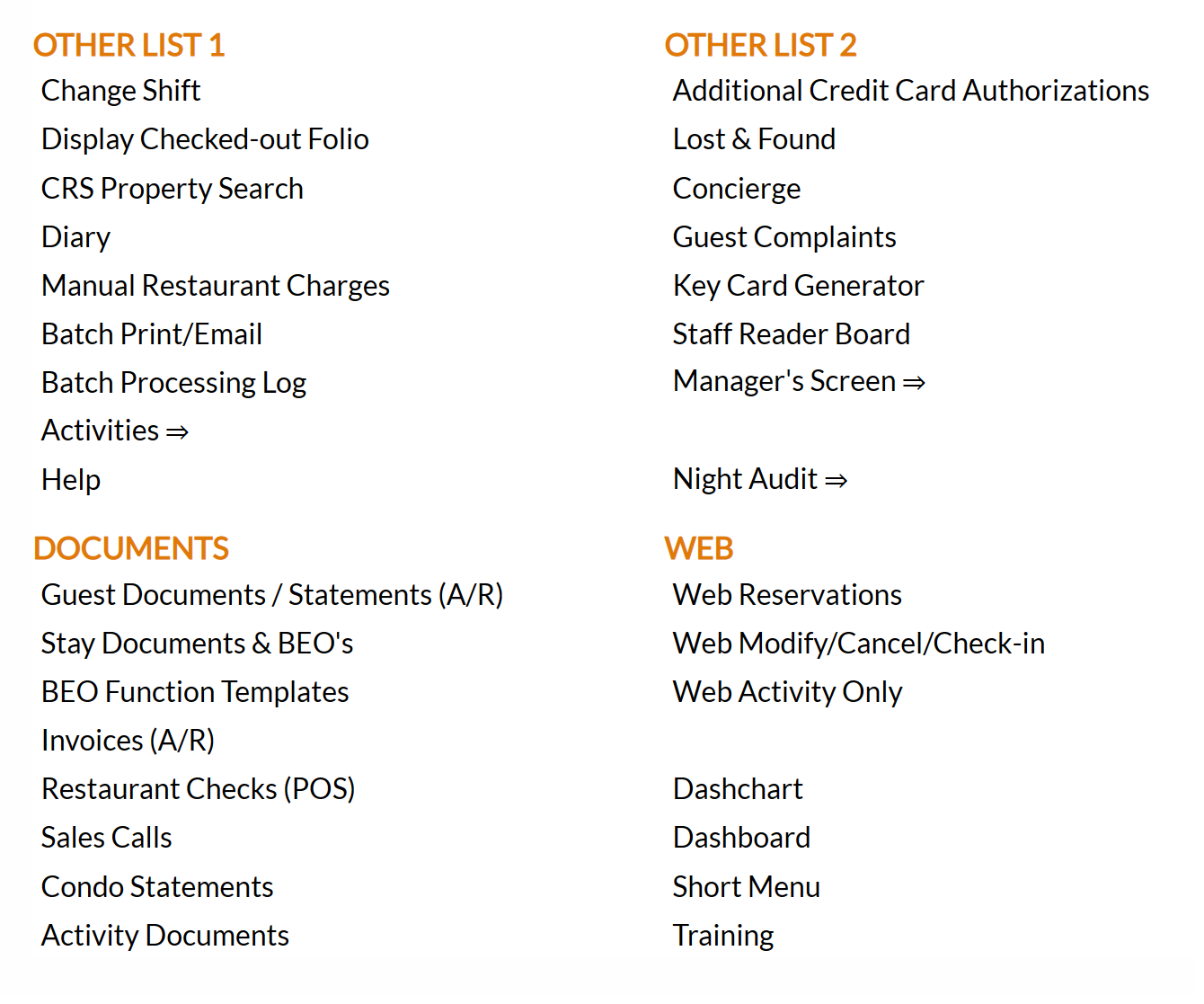
Select Manager's Screen to be taken to the Manager's Command screen.
 OR
OR 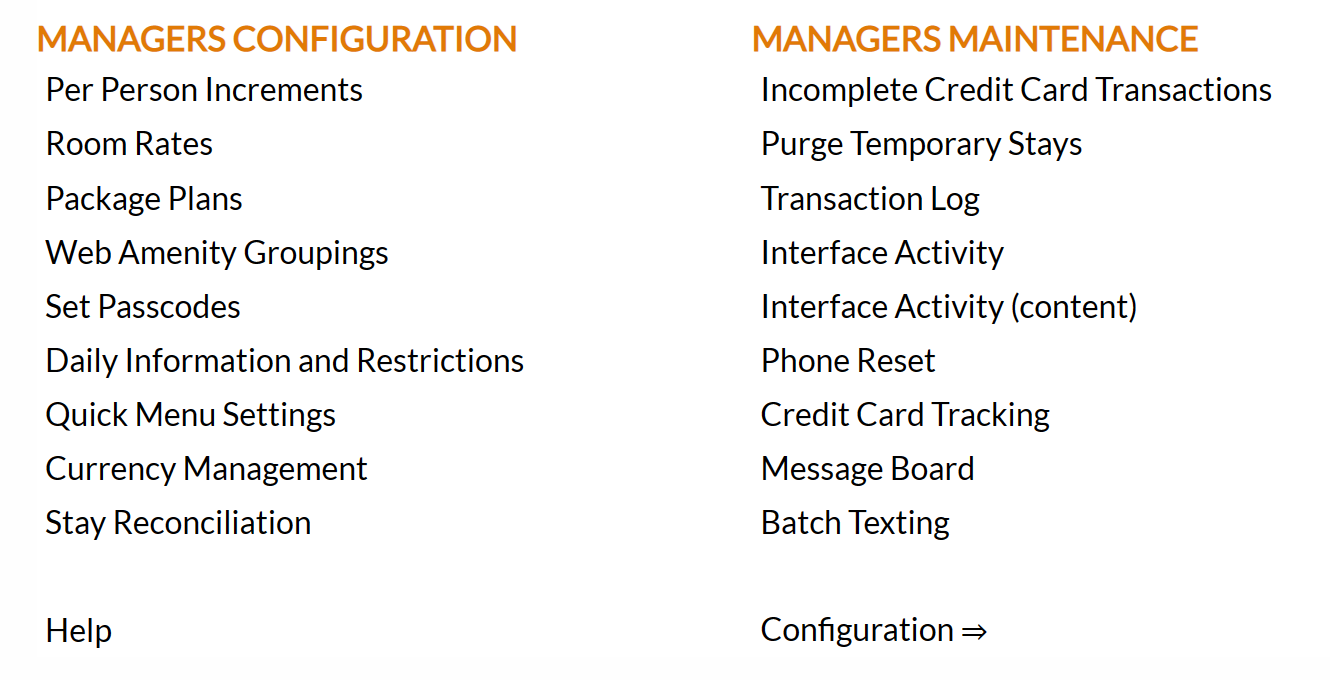
OR:
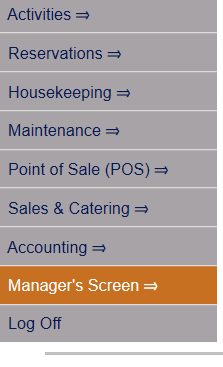
Select Manager's Screen from the Quick Menu on the left side of the screen, to be taken to the Manager's Command screen.
 OR
OR 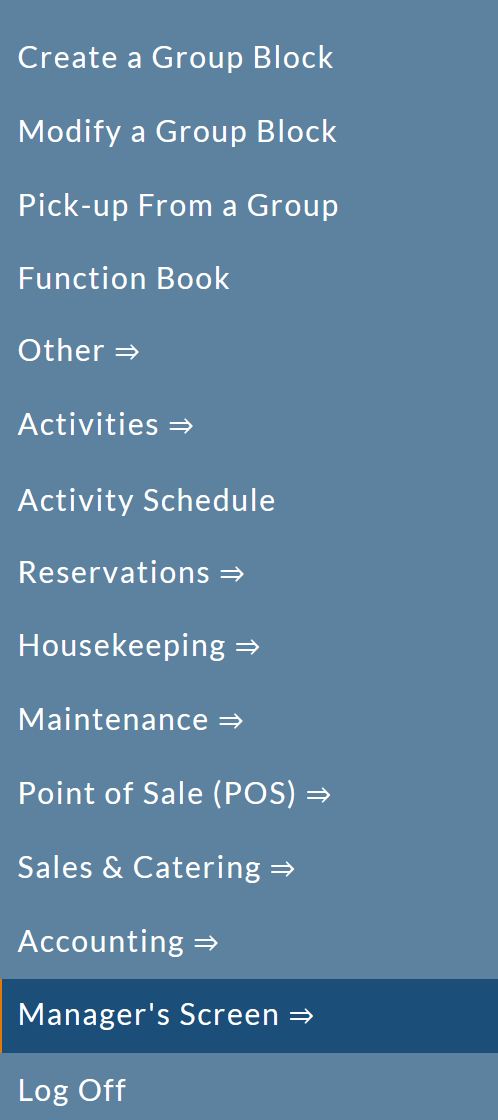
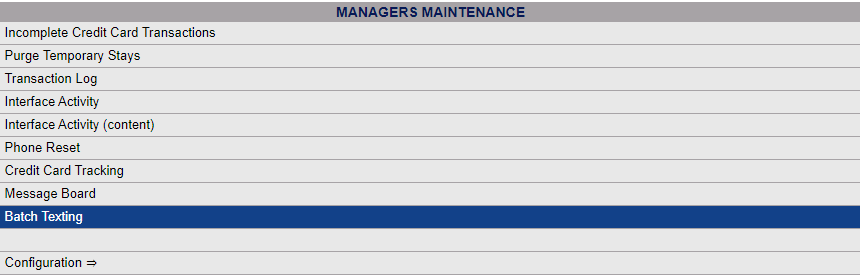
The Manager's Command screen menu has two sections, Manager's Configuration and Manager's Maintenance.
 OR
OR
Select Batch Texting from the Manager's Maintenance section.
 OR
OR 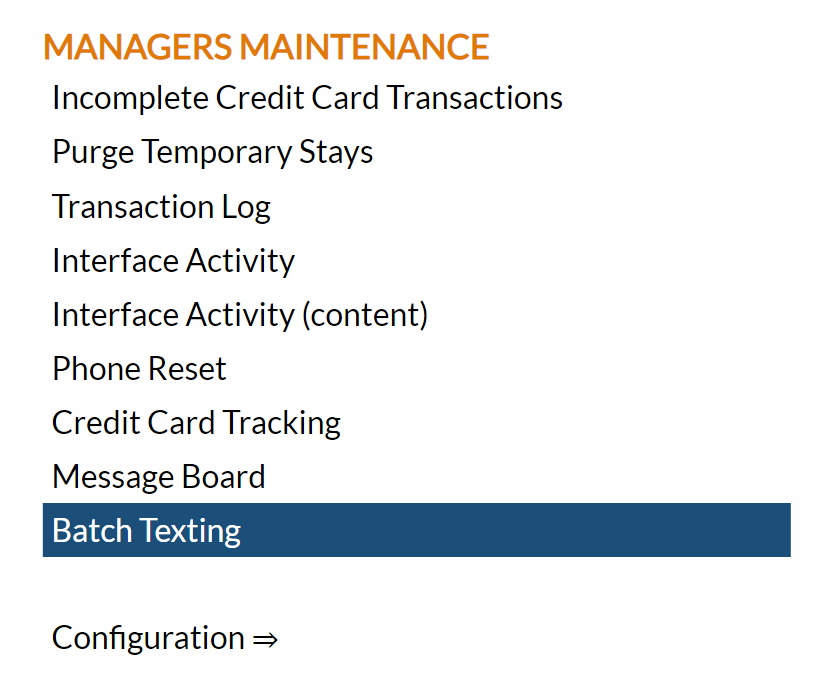
2. Via the Texting Menu:
To access the Texting Menu and its features:
The Texting Menu is reached via the Other Front Desk Tasks Menu:
To reach the Other Front Desk Tasks Menu:
Depending on your Skyware Systems set-up, you may or may not have a quick menu option for the Other Front Desk Tasks Menu area. If you can, select Other => from the Quick Menu on the left side of the screen.
 OR
OR 
OR
Select Other => from the Other section (bottom right) of the Full Menu.
Click the icon on the left for the Full menu.
OR
This will display the Full menu in a tabular form, with four sections, Registration, Status, Cashier and Other.
OR
From the Other Section, select Other =>.
 OR
OR 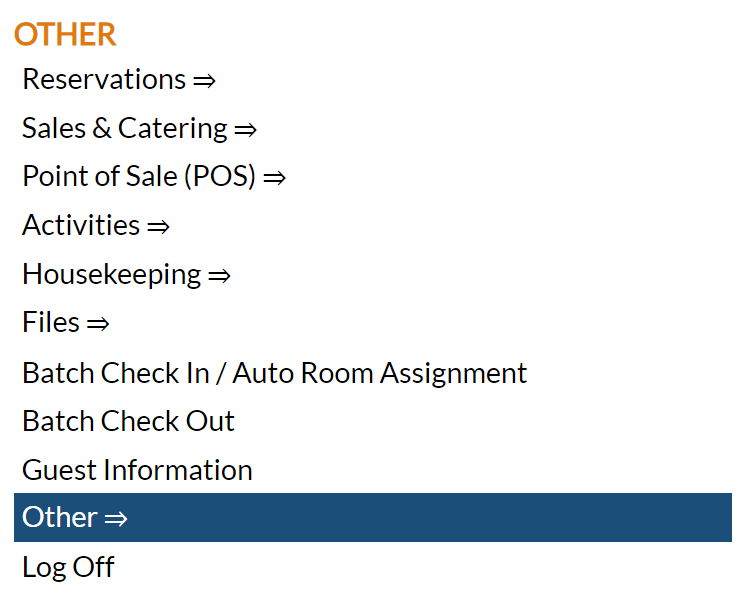
This will display the Other Front Desk Tasks Menu.
The Other Front Desk Tasks Menu area is divided into four sections: Other List 1, Other List 2, Documents and Web.
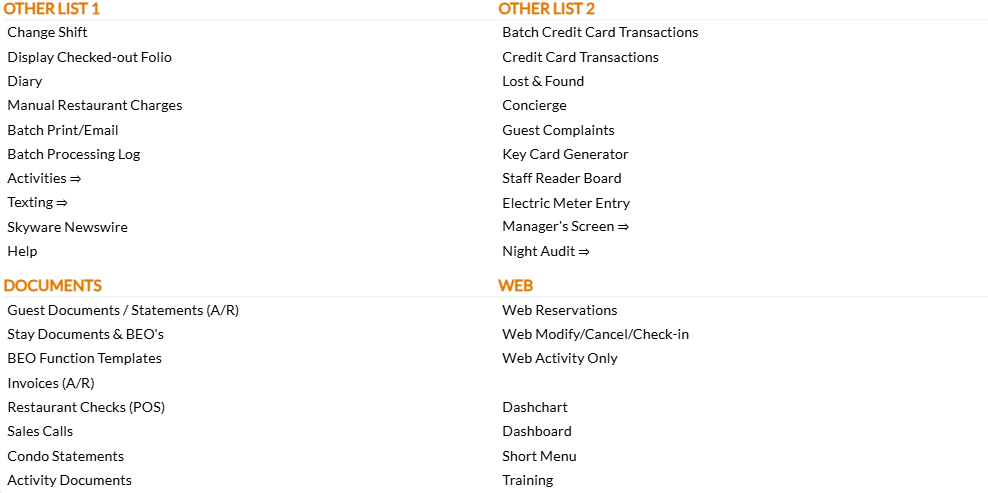
Select the Texting => command from the Other List 1 section.
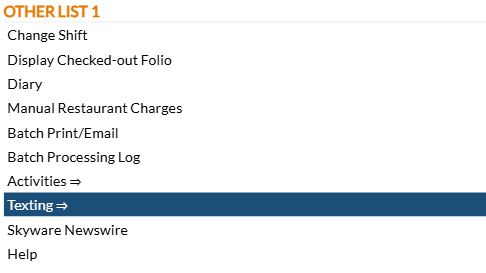
This will display the Texting Menu. The Texting Menu is divided into 4 sections: Items, Reports, Custom Messages and Other.

Select Batch Texting (Stays) from the Items section.
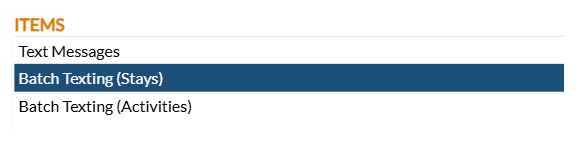
When selected the Batch Texting (Stays) screen will open.
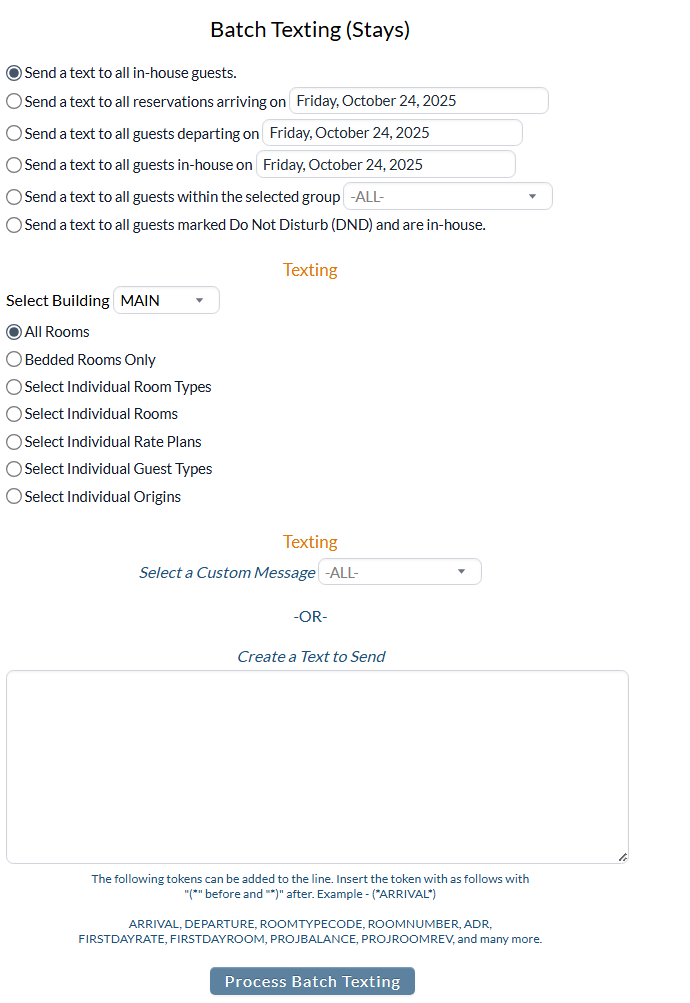
Recipients:
First choose whom will receive the text. Use the radial buttons to select ONE option from:
Send a text to all in-house guests OR
Send a text to all reservations arriving on (specify the date using the calendar field) OR
Send a text to all guests departing on (specify the date using the calendar field) OR
Send a text to all guests in-house on (specify the date using the calendar field) OR
Send a text to all guests within the selected group (specify the group from the drop-down list of groups available).
Send a text to all guests marked Do Not Disturb (DND) and are in-house (DND as marked on the housekeepers dashboard only).
Note: Only ONE group may be selected. One group MUST be selected if this option is chosen.
These options allow you to send a text to guests currently in-house, guests that will be in-house on a particular day, guests expected to arrive or depart on a particular day, or guests associated with a particular group booking. By default, the "Send a text to all in-house guests" option is selected.
Filters:
You may narrow the recipients of the batch text down further using multiple filter options:
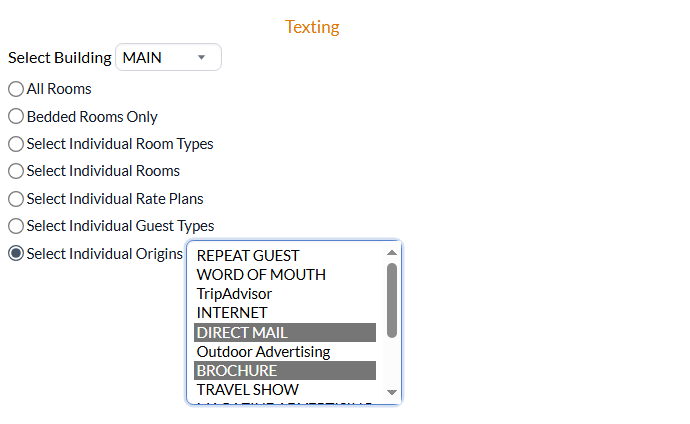
Select Building: Narrow the recipient list by selecting a particular building the guest's receiving the text will be in. Use the drop down list to select a particular building, or select -All-.
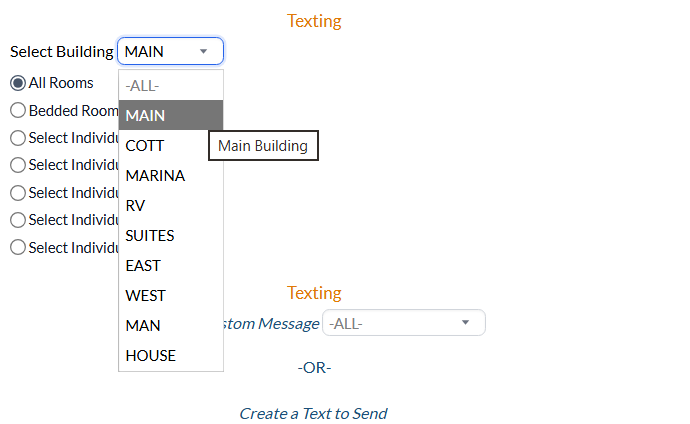
Filtering also allows you to select the type of rooms (bedded or non-bedded) the guests may be associated with, or to filter the recipients by Room Type, Individual Room(s), Rate Plans, Guest Types or Origins.
Use the radial buttons to select ONE option from:
All Rooms OR
Bedded Rooms Only OR
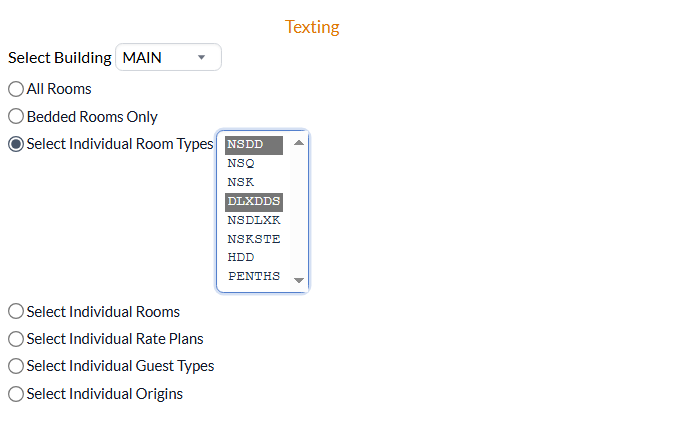
Select Individual Room Types: Multiple Room Types may be selected if this radial button option is selected.
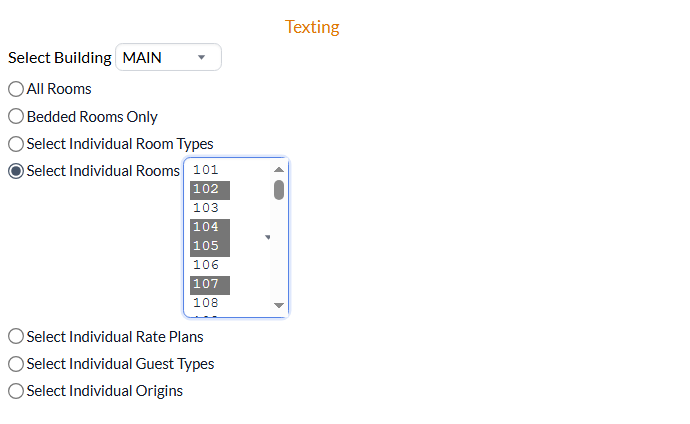
Select Individual Rooms: Multiple individual rooms may be selected with this option.
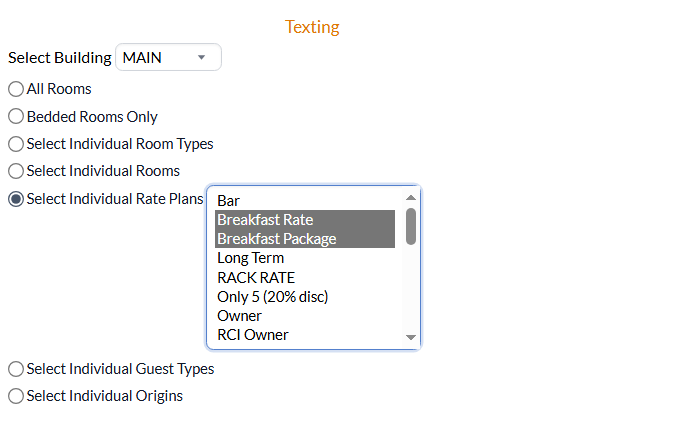
Select Individual Rate Plans: Multiple Rate Plans may be selected with this option.
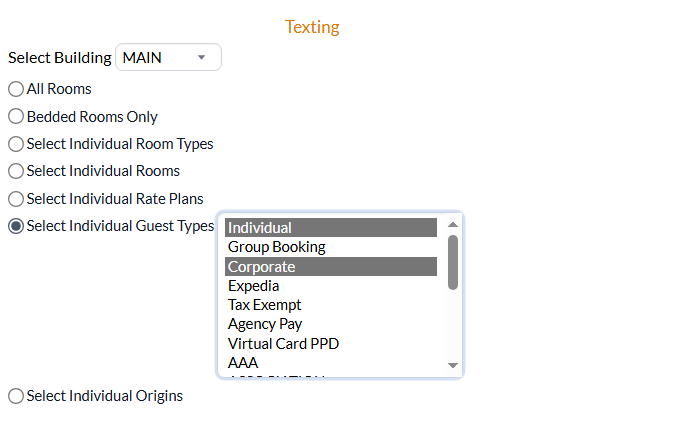
Select Individual Guest Types: Multiple Guest Types may be selected with this option.
Select Individual Origins: Multiple Origins may be selected with this option.
Once you have selected whom will receive the text message, the body of the text message must be generated.
If you have a previously prepared custom message that you wish to send, use the drop-down menu next to the Select a Custom Message option to select the correct message from the available options. The messages available in this list are generated using the Texting Custom Messages (Stay) screen, and may be re-used as often as needed.
If not, use the Create a Text to Send field to enter in the desired message.
Note: As it is a text message, no custom fonts or grids may be used - plain text only. however, TOKENS, representing information such as arrival, departure, or room number may be added into the body of the text using the format (*TOKEN NAME*) to help tailor the message to the individual guests receiving it. Tokens use a specific ID to pull the individual data from your Property. Ensure that you enter the correct token ID desired - for example there may be several last names associated with a stay - the token ID means that you can specify the correct last name to use, rather than all. Skyware has many token IDs available. As such, the token ID may not be easily recognizable for what it represents once it has been embedded into the text. Be sure to enter your selection carefully. (Please contact Skyware if you are having trouble using or locating the desired token ID).
Once you have selected the recipients and generated the text message to be sent, click the button Process Batch Texting to send it.
Note: Please allow time for the texts to be sent out. This is to help ensure that the texts are not seen as spam by the receiving services.